


ZTP Configuration
此内容尚不支持你的语言。
Zero Touch Provisioning (ZTP) refers to the automatic loading of initialization files (configuration files, upgrade files) on newly manufactured or blank devices when they are powered on. This functionality enables devices to be deployed and configured without requiring on-site manual configuration. As a result, ZTP reduces labor costs and enhances deployment efficiency.
Principle Explanation
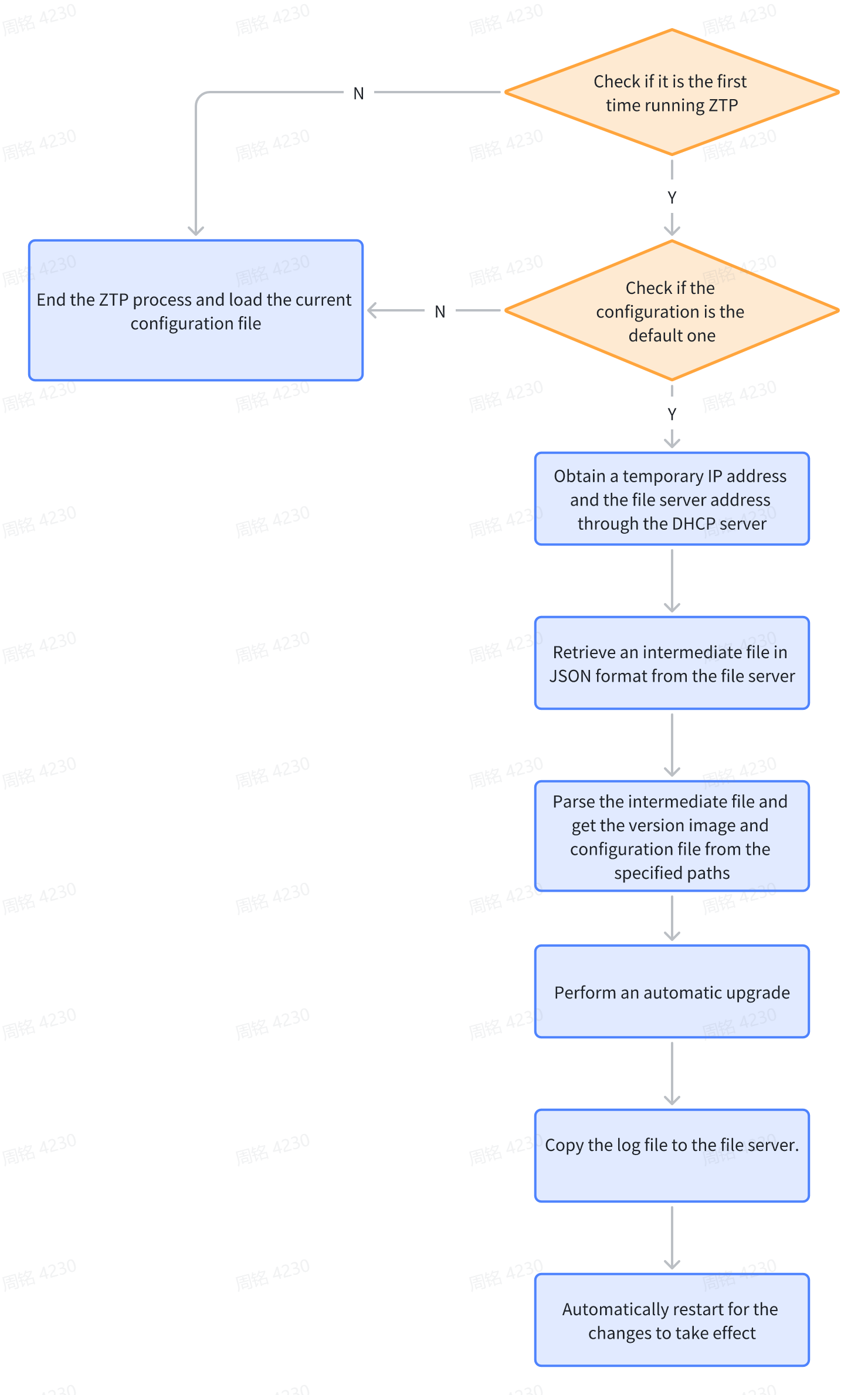
Section titled “Principle Explanation”As illustrated in the diagram, a device awaiting configuration is connected to a DHCP relay device via its service port or management port. Upon powering on, the device checks whether a ZTP initialization process has been carried out. If yes, it loads the system configuration files and starts the device. If not, the device enters the ZTP initialization process through DHCP.
During this process, the device operates as a DHCP client and sends DHCP request packets to the DHCP server to obtain an IP address and the path to the required upgrade files. Based on the configuration information carried in the received DHCP response packet, the device automatically retrieves version and configuration files from the specified file server. It then proceeds to execute the upgrade command and reboot the device.
Upon completion of the device reboot, automatic loading of both the version and configuration is achieved.
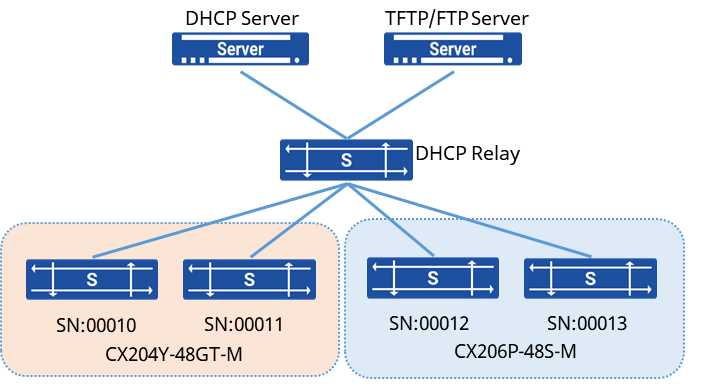
DHCP Server: Used to assign temporary management IP addresses to devices and provide the file server address.
TFTP/FTP Server: Stores the configuration files, version images required for ZTP initialization, and user logs after upgrades are completed.
DHCP Relay: When the device to be upgraded and the DHCP Server are in different network segments, a relay device is needed to forward DHCP packets.
Devices can carry their hardware model and serial number in the packets. TFTP/FTP servers can name version files based on hardware models and name configuration files based on serial numbers, enabling provision of different versions and independent configuration files for devices of various models and serial numbers.
The workflow of ZTP is illustrated in the diagram below:
Configuring the DHCP Server
Section titled “Configuring the DHCP Server”The DHCP server passes network configuration parameters to the device through the Option field. When the device to be configured is not on the same subnet as the DHCP server, a DHCP relay needs to be configured to forward DHCP interaction messages.
When the device enters the ZTP process, both the management port and service port of the device will send DHCPv4 Discover messages, carrying option 67 to request the path to the intermediate file required for provisioning.
DHCP Option Parameters Description
| Option Number | Function |
|---|---|
| Option 1 | Sets the subnet mask for the IP address |
| Option 3 | Sets the gateway for the DHCP client |
| Option 6 | Sets the IP address of the DNS server |
| Option 67 | Sets the path to the intermediate file. Such as: ftp://ftpserver:test@192.168.0.10/ztp.json |
Configuring the File Server
Section titled “Configuring the File Server”The file server is used to store the files that need to be transferred during the ZTP process, including intermediate files, image files, configuration files, and logs. Generally, a third-party server is used as the file server, and during deployment, the network connectivity between the file server and the device must be ensured. The file server supports TFTP and FTP servers.
Place the intermediate file and other provisioning files in the working directory of the file server and rename the files as specified:
Image File: The name should be the device type followed by .bin. For example, if the device type is CX204Y-48GT-M-SWP4, the image file name should be CX204Y-48GT-M-SWP4.bin.
Configuration File: The name should be the device serial number (SN) followed by .bin. For example, if the device SN is F020000A055, the configuration file name should be F020000A055.bin.
Intermediate File: The file must be named exactly ztp.json.
Logs: Logs generated by the device during the ZTP process will be uploaded to the file server after the ZTP process is completed or if it fails for some reason, to facilitate troubleshooting.
BlockQuote option bootfile-name ”ftp://ftpserver:test@192.168.0.10/ztp.json
- Create a ZTP file in the /ftpboot directory of the FTP server, and provide directory information for the required files during the ZTP process.
{
"ztp": { "configdb-json": { "dynamic-url": { "source": { "prefix": "ftp://ftpserver:test@192.168.0.10/ZTP_CFG/", "identifier": "serial-number", "suffix": ".json" }, "destination":"/etc/sonic/config_db.json" } },
"firmware": { "install": { "dynamic-url": { "source": { "prefix": "ftp://ftpserver:test@192.168.0.10/ZTP_IMAGE/", "identifier": "product-name", "suffix": ".bin" } },
"set-default": true } },
"upload-log": { "dynamic-upload-url": { "destination": { "prefix": "ftp://ftpserver:test@192.168.0.10/ZTP_LOG/", "identifier": " serial-number", "suffix": ".LOG" } },
"reboot-on-success": true } }}- Upload the required files to the directory specified in the ztp.json file on the FTP server.
Verify configuration
After device reboot, view device version and configuration
sonic# show versionsonic# show running-config